Apple · iOS 18
Apple iOS 18: New Features, Supported Devices & Release Date
Everything worth knowing — without the marketing fluff.
I've been running iOS 18 since the first developer beta dropped, and I'll be honest — some updates I expected, some genuinely surprised me. Apple made changes that go deeper than a visual refresh this time, particularly around customisation and AI integration. If you're deciding whether to update, or just trying to figure out which features actually matter, this is the breakdown I wish existed when I started.
Below is everything confirmed: what's new, which iPhones support it, and what you need to know before updating.
Release Date & Rollout
Apple released iOS 18 officially on September 16, 2024, following its announcement at WWDC 2024 in June. The update rolled out to all supported devices simultaneously — no staged rollout by region, which was a welcome change from previous years.
| Milestone | Date |
|---|---|
| WWDC Announcement | June 10, 2024 |
| Developer Beta 1 | June 10, 2024 |
| Public Beta | July 2024 |
| Official Public Release | September 16, 2024 |
| Apple Intelligence (Phase 1) | October 2024 (iOS 18.1) |
What's Actually New in iOS 18
There's a lot crammed into this release. Here's what genuinely stood out after daily use, rather than just the features Apple highlighted on stage.
1. Home Screen Customisation — Finally
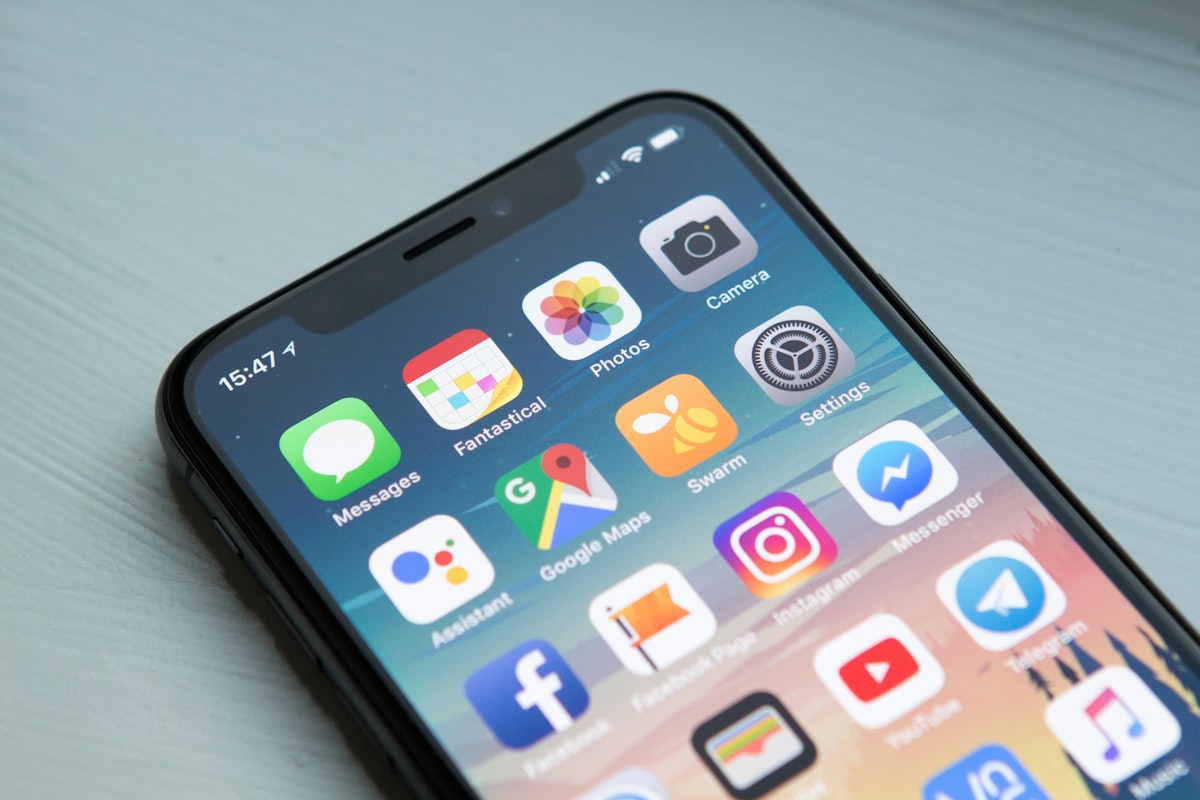
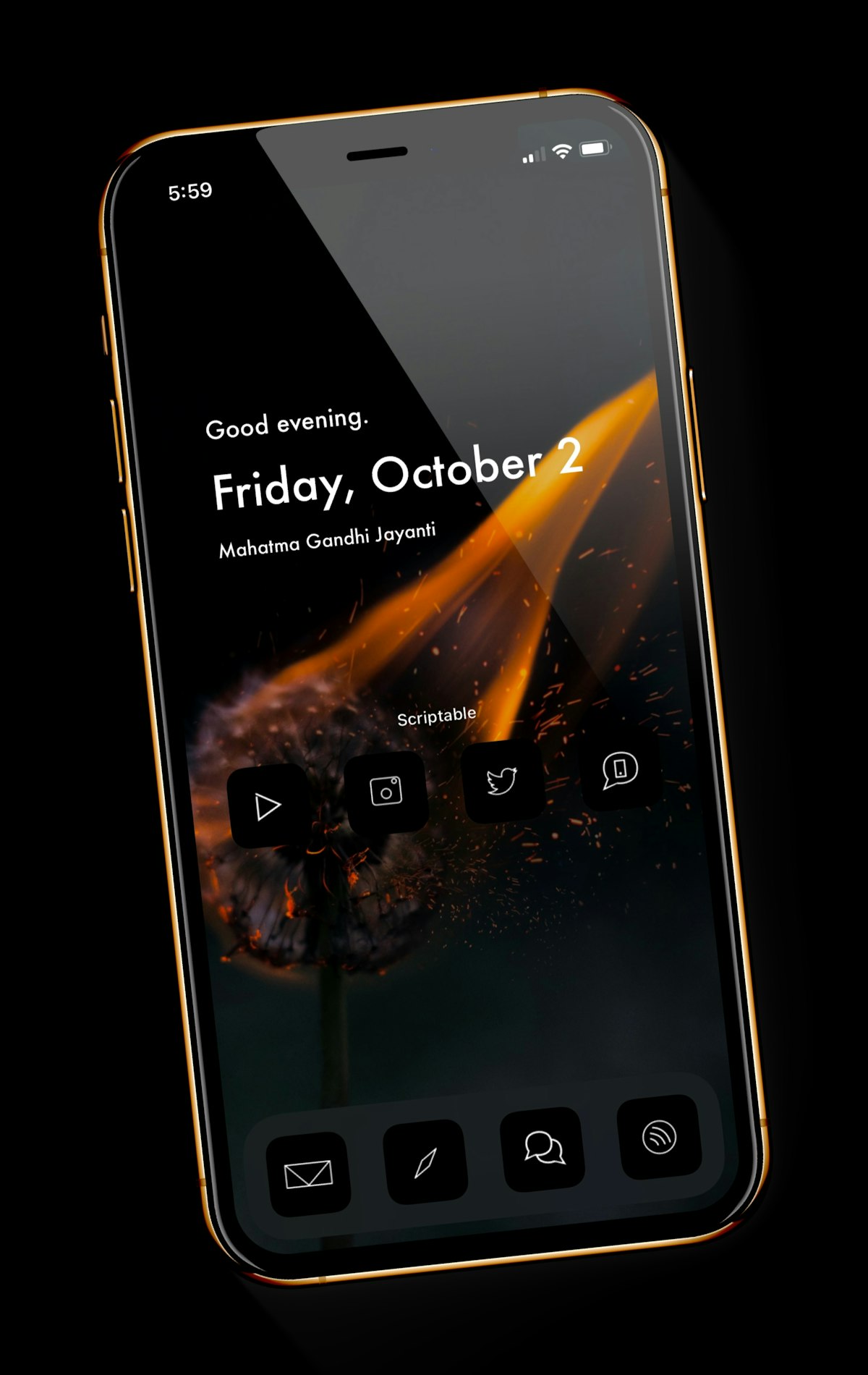
You can now place app icons anywhere on the home screen — not just snapped to a grid. That sounds minor until you actually use it. Being able to leave space at the top and cluster apps along the bottom edge genuinely changes how usable the home screen feels one-handed. You can also tint all icons to match a colour, which either looks great or terrible depending on your wallpaper.
2. Control Centre Gets Overhauled
Control Centre now supports multiple pages — swipe between them like a mini app switcher. You can add third-party controls directly (apps need to add support, but it's growing fast), resize tiles, and rearrange everything. It's one of those changes that makes you wonder why it took this long.
3. Messages Gets RCS and Scheduled Sending
Two things here. First, RCS support finally arrived — messages to Android users now send as high-quality RCS instead of degraded SMS/MMS. Photos and videos no longer arrive looking like they were compressed in 2009. Second, you can now schedule messages to send at a specific time, which is genuinely useful if you think of something at midnight but don't want to ping someone until morning.
4. Locked and Hidden Apps
You can now lock any app behind Face ID or Touch ID — someone picking up your phone can see the app icon but can't open it without biometrics. You can also hide apps entirely, moving them to a locked hidden folder that doesn't show up in search or Siri suggestions. Useful for banking apps, health data, or honestly anything you don't want visible to others.
5. Photos App Completely Rebuilt
The Photos app got its biggest redesign in years. The new layout organises your library into automatically curated collections — Recents, People & Pets, Trips, and so on — without forcing you to manually sort anything. There's no more separate Albums tab at the bottom; everything lives in one scrollable view. It takes a few days to adjust to, but once you do, finding specific photos is significantly faster.
6. Apple Intelligence (iPhone 15 Pro / iPhone 16 Only)
Apple's on-device AI system rolled out in phases starting with iOS 18.1. The features that actually work well: Writing Tools (genuinely useful for rewriting tone in emails), notification summaries (hit or miss but saves time), and Clean Up in Photos (works better than expected on simple backgrounds). Siri got smarter too, with better contextual understanding — though it's still not as capable as Google Assistant for complex chains of requests.
iOS 18 Features at a Glance
| Feature | All Devices | Pro / iPhone 16 Only | Category |
|---|---|---|---|
| Free Home Screen Layout | ✅ | — | Customisation |
| Control Centre Pages | ✅ | — | Customisation |
| RCS Messaging | ✅ | — | Communication |
| Scheduled Messages | ✅ | — | Communication |
| App Lock & App Hide | ✅ | — | Privacy |
| New Photos App | ✅ | — | Media |
| Writing Tools (AI) | — | ✅ | AI |
| Clean Up (Photos AI) | — | ✅ | AI |
| Notification Summaries | — | ✅ | AI |
Supported Devices — Full List
iOS 18 dropped support for the iPhone 8, iPhone X, and the first-generation iPhone SE — all of which were supported on iOS 16 but got cut before iOS 17. If you're on one of those, iOS 18 isn't available to you.
| Device | iOS 18 | Apple Intelligence |
|---|---|---|
| iPhone 16 / Plus / Pro / Pro Max | ✅ | ✅ |
| iPhone 15 Pro / Pro Max | ✅ | ✅ |
| iPhone 15 / Plus | ✅ | ❌ |
| iPhone 14 Series (all) | ✅ | ❌ |
| iPhone 13 Series (all) | ✅ | ❌ |
| iPhone 12 Series (all) | ✅ | ❌ |
| iPhone 11 Series (all) | ✅ | ❌ |
| iPhone XS / XS Max / XR | ✅ | ❌ |
| iPhone SE (2nd & 3rd gen) | ✅ | ❌ |
| iPhone 8 / X / SE (1st gen) | ❌ | ❌ |
How to Update to iOS 18
The update process is straightforward, but a couple of things are worth doing before you tap Install.
# Step 1 — Back up first (seriously, do this)
Settings → [Your Name] → iCloud → iCloud Backup
→ Back Up Now

# Step 2 — Check your storage
Settings → General → iPhone Storage
→ You need at least 2–3 GB free

# Step 3 — Install the update
Settings → General → Software Update
→ Tap "Update Now" or "Download and Install"

# Step 4 — Plug in to power
Updates install faster and more reliably when charging.
iOS will reboot once or twice during installation — that's normal.Should You Actually Update?
Honestly, yes — but with a few caveats depending on your device.
- iPhone 16 or 15 Pro: Definitely update. Apple Intelligence features keep improving with each point release, and the base iOS 18 features are genuinely useful.
- iPhone 13 or 14: Worth it for RCS, app locking, and the home screen changes alone. Battery life impact is minimal.
- iPhone 11 or 12: Update, but don't expect Apple Intelligence. The core features still work well and security patches alone make it worthwhile.
- iPhone XS or XR: These devices are getting long in the tooth for iOS 18. Performance should be acceptable, but expect some slowdowns in heavier apps.
Frequently Asked Questions
▸ Will iOS 18 slow down my older iPhone?
On iPhone XS and XR there can be some noticeable lag in certain animations and heavier apps. On iPhone 11 and newer, performance is generally fine. Apple has historically been better about this in recent years since the throttling controversy.
▸ Can I go back to iOS 17 after updating?
Only for a limited window after release, while Apple still signs iOS 17. Once Apple stops signing the older version (usually a few weeks after a new release), downgrading is no longer possible through normal means. This is why backing up before updating matters.
▸ Is Apple Intelligence free or a paid subscription?
All Apple Intelligence features included in iOS 18 are free — no subscription required. Advanced ChatGPT integration within Siri is also free for basic use, though heavy usage of ChatGPT's features may require a ChatGPT account.
▸ Does iOS 18 drain battery faster?
Initial battery drain for the first 24–48 hours after updating is normal — the system is re-indexing and rebuilding caches. Most people report battery life returning to normal or slightly improving after the first couple of days. If it's still bad after a week, a full restart and checking Background App Refresh settings usually helps.
▸ Does the new Photos app layout have an undo option?
No — there's no way to revert to the old Photos layout once you've updated to iOS 18. It takes a few days to get used to, but most people who stuck with it report preferring it over the old tab-based layout within a week or two.
Conclusion
iOS 18 is a solid release — arguably one of the more meaningful updates in a few years. The customisation changes, app locking, RCS support, and the rebuilt Photos app are useful on their own even if you never touch Apple Intelligence. And if you're on a supported device, the AI features keep getting better with each point release.
If you're sitting on the fence, back up your device and update. The features hold up in daily use — this isn't just a marketing list that looks impressive on a slide and disappears once you actually start using your phone.
Quick summary
Released September 16, 2024 · Supports iPhone XS and newer · Apple Intelligence on iPhone 15 Pro & iPhone 16 only · Free to update · No reinstall needed.